The recipe view header - title, tags, and badge row - is fully configurable from Settings → Recipe Box → Recipe view. You can show or hide frontmatter tags, control how they’re formatted, and add, remove, reorder, or reconfigure the badges shown next to the title.
Showing Tags in the Header
| Setting | Default | What it does |
|---|---|---|
| Show tags in header | Off | Displays the recipe note’s frontmatter tags above the badge row. |
| Tag prefix | Off | Prefixes each displayed tag with #. |
| Tag format | Full path | Full path shows nested tags as written (e.g. cooking/italian); Last segment shows only the final part (e.g. italian). |
Header Badges
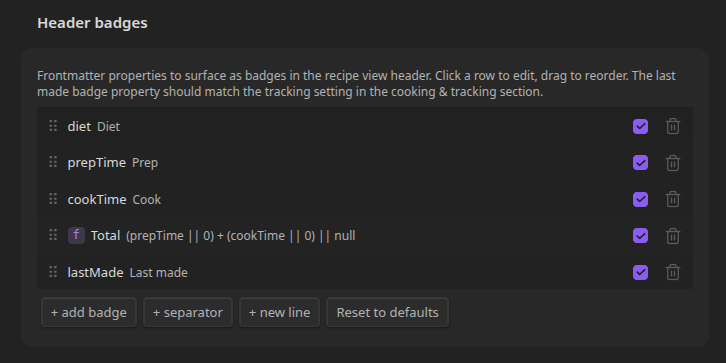
By default, the header shows five built-in badges: a diet badge (from diet), prep time, cook time, a computed total time, and a “last made” badge. Under Header badges you can edit, remove, reorder, or add to this list.
Each row can be one of three types:
- Badge - shows a value from a frontmatter property (or a formula).
- Separator - a small character (·, |, •, etc.) between badges.
- New line - wraps following badges onto a new row.
Click a badge or separator row to edit it. The checkbox toggles whether it’s shown without deleting it.
Badge Options
| Field | What it does |
|---|---|
| Use formula | Replaces the property lookup with a custom expression (see below). |
| Property | Frontmatter key to read (e.g. cuisine). Ignored when using a formula. |
| Label | Text shown before the value. |
| Show label | When off, only the value is shown. |
| Icon | A Lucide icon name shown inside the badge (e.g. clock, globe). |
| Color | Badge color: Default, Green, Blue, Purple, Yellow, or Red. |
| Prefix / Suffix | Text added before/after the value. Not available for formula badges. |
| Split array | When the property is a list, shows one badge per item. Not available for formula badges. |
| Value type | auto (string/number as-is, ISO dates formatted, wikilinks unwrapped) or minutes (formats an integer as a duration, e.g. 90 → 1h 30m). |
Built-in badges can be reordered, hidden, or relabeled, but their property/prefix/suffix/split settings are locked - use a formula badge instead if you need a fully custom variant.
Formula Badges
Toggle Use formula to replace the property lookup with an expression. Every frontmatter property is available by name, and the expression should evaluate to a string, number, boolean, or null/undefined (returning null or undefined hides the badge for that recipe). The built-in Total badge uses:
(prepTime || 0) + (cookTime || 0) || null
Supported operators:
arithmetic:  + - * / %
comparison:  === !== < > <= >=
logical:     && || ?? !
ternary:     condition ? a : b
grouping:    ( ... )
Method calls and array access are not supported.
Adding and Reordering
Use + add badge, + separator, or + new line at the bottom of the list to add entries. Drag the handle on the left of a row to reorder (on desktop). On mobile, use the arrow buttons. Reset to defaults restores the original five built-in badges.