The Edit recipe editor lets you change an existing recipe without leaving the Recipe View: fix an ingredient, reorder steps, add or rename groups, adjust times and servings, or rename the note. It uses the same form as the import review step, so it works the same way.
Recipe Box only writes what you actually changed. Anything you leave alone, including formatting, tags like #IgnoreIngredient, and wikilinks, stays exactly as it is in the note.
Opening the Editor
Any of these opens the editor for the recipe you’re viewing:
- The Edit recipe icon (a file with a pencil) in the recipe view header. The plain pencil next to it is still Open as Markdown.
- Edit recipe in the view’s more options menu.
- Clicking the Ingredients or Instructions heading in the recipe view. The editor opens scrolled to that section. A small pencil icon appears next to the heading on hover (always visible on mobile).
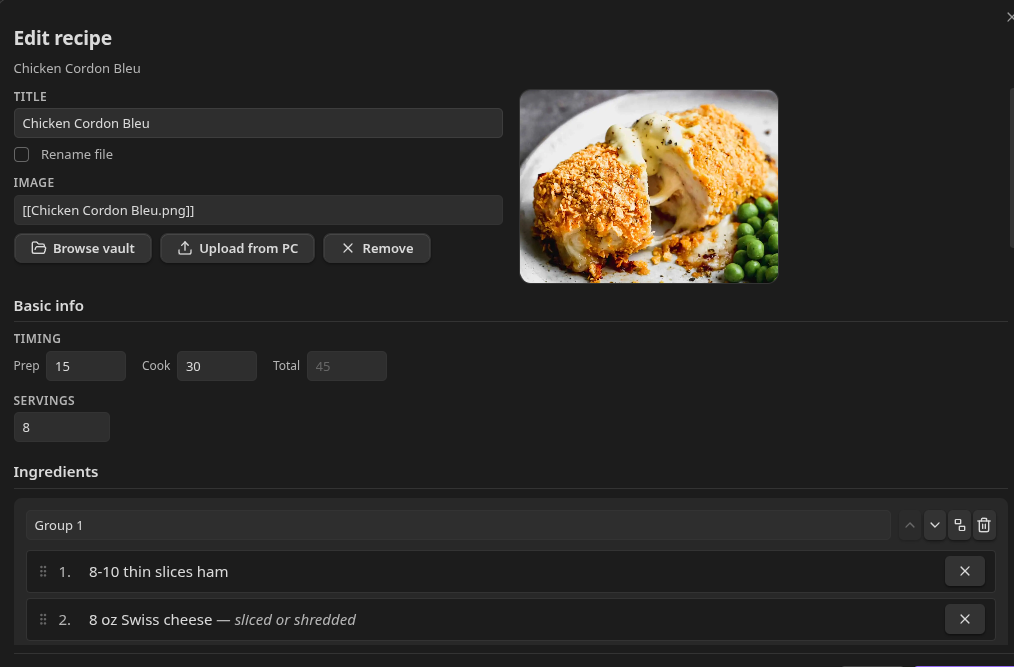
What You Can Edit
| Field | Notes |
|---|---|
| Title | Read-only until you check Rename file (see below). |
| Image | Editable when the image comes from your image property, or when there is none. If the hero image comes from an image embedded in the note body, the field is read-only; edit that image as Markdown. |
| Prep / Cook / Total, Servings | Edited as text, so values like 4-6 or 1h 30m are kept exactly as written. |
| Ingredients and Steps | Structured editor with groups. See below. |
| Notes | A plain Markdown text box, saved exactly as typed. |
| Nutrition | Same behavior as editing nutrition from the recipe view: values are the raw, unscaled numbers. |
Not editable here: the description, the folder the recipe lives in, cook history, rating, favorite, tags, diet, and allergens. Cook history and favorites have their own controls, and the rest are ordinary properties you can change in the note.
Editing Ingredients and Steps
Each entry is one row. Click a row to edit it, or use the controls to remove it.
- Reorder by dragging a row’s grip handle (the six dots), or focus a row and press Alt+Up or Alt+Down. On mobile, drag from the handle.
- Move between groups by dragging a row into another group. Alt+Up on a group’s first row (or Alt+Down on its last) moves it into the neighboring group.
- Groups can be added, renamed, reordered with the arrows, and deleted. Deleting a group that still has entries asks you to confirm first.
Numbered steps are renumbered automatically when you save.
When a Section Can’t Be Edited Here
The structured editor only handles sections made of single-line list items and group headings. If an Ingredients or Steps section contains anything else, Recipe Box leaves it alone and shows an Open as Markdown button instead. Examples of content that triggers this:
- paragraphs of text between the list items
- nested or indented bullets
- a step that wraps onto a second line
- quotes, callouts, tables, code blocks, or images on their own line
- RecipeMD notes (both sections)

The rest of the form stays editable. This is deliberate: it is safer to hand you the Markdown than to rewrite content the editor can’t represent.
If your note has no Ingredients or Steps heading yet, you can add content to the empty section and Recipe Box inserts the heading for you, using your configured heading names.
Renaming the Recipe
A recipe’s title is its file name, so changing the title means renaming the file. Check Rename file next to the title to unlock the field. Unchecking it again restores the original name. Links to the note are updated by Obsidian. If another note already has that name, the other changes are saved and the rename is skipped, with a notice.
The title can’t be empty or contain \ / : * ? " < > | # [ ]. A # Title heading inside the note body is not changed by a rename.
Saving
Save changes with nothing changed simply closes the editor.
If the note changed on disk while the editor was open (for example, a sync brought in an edit from another device), Recipe Box refuses to save and shows “This recipe changed since the editor was opened. Nothing was saved.” Close the editor, reopen it, and redo your change.
Related
- Recipe View
- Writing a Recipe Note
- Importing Recipes from the Web - the review form uses the same editor