Recipe Box can import a recipe from a URL or from pasted text, parsing out the title, ingredients, instructions, and other details, then let you review and edit everything before creating a ready-to-use recipe note in your vault.
Moving a whole collection from another app? See Importing Recipes from Files.
Importing a Recipe
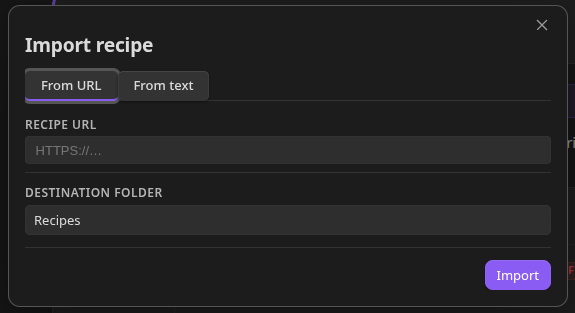
- Run the Import recipe command (Command Palette → “Import recipe”).
- Choose From URL or From Text.
- Fill in the form and optionally change the Save to folder field (defaults to your configured import folder, or your first recipe folder).
- Click Import to parse the recipe.
- Review the extracted fields - title, servings, times, description, ingredients, instructions, and nutrition - editing anything that needs fixing. In the ingredient editor, a range stays in the quantity field (
2-3) and a second measurement stays in the unit field (cup / 240 ml), so both are kept when you save. Use ← Back to return to the input form if needed. - Click Save recipe.
Recipe Box creates a new note and opens it automatically in the Recipe View. If a note with the same name already exists in that folder, Recipe Box asks whether to overwrite it.
The recipe’s hero image is also downloaded into your vault automatically as part of the import (best-effort - if the download fails, the note is still created using the original image URL).
From URL
Paste the URL of a recipe page or a cooking video (YouTube or TikTok).
- If the page publishes a ready-made recipe note as part of its structured data, Recipe Box downloads that note directly and uses it as-is, skipping HTML parsing entirely. This gives the most accurate result whenever a site offers it.
- Otherwise, for ordinary recipe pages, Recipe Box reads the structured recipe data embedded in the page’s HTML - title, image, servings, times, ingredients, instructions, and nutrition (when published).
- For YouTube and TikTok links, Recipe Box fetches the page and parses the video’s title and description as recipe text.
- Instagram links aren’t supported. Copy the recipe caption and use From Text instead.
Why a URL Import Might Fail
- The site requires a login or paywall to view the recipe.
- The page renders its content with JavaScript rather than including it in the initial HTML.
- The page doesn’t publish structured recipe data and isn’t a recognized video platform.
In these cases, Recipe Box shows a notice and no note is created. You can copy the recipe text and use From Text instead.
From Text
Paste any recipe text - copied from a website, a social media caption, OCR’d from a photo, or whatever format it’s in. An optional Title field lets you set the title directly; if left blank, Recipe Box tries to detect it from the text.
Recipe Box looks for “Ingredients” and “Instructions”/“Directions”/“Method”/“Steps” headings (or similar) to split the text into sections, and detects servings, prep/cook/total time, and nutrition from common phrases.
The Review Step
Before anything is saved, Recipe Box shows an editable review form with the parsed data:
- Title, Servings, and Time (prep/cook/total, in minutes)
- Description
- Ingredients and Instructions as plain text - one item per line, with
## Headinglines to start a new group - Notes (optional) - anything that doesn’t fit ingredients or instructions, same one-item-per-line format
- Nutrition (calories, protein, fat, carbs)
Edit anything before saving. The ## Heading convention works the same whether the recipe came from a URL or pasted text. To change a recipe after it has been created, see Editing a Recipe.
Settings
Configured under Settings → Recipe Box → Recipe import:
| Setting | Default | What it does |
|---|---|---|
| Import folder | (empty = first recipe folder) | Vault-relative folder where imported recipes are saved. |
| Import template note | (empty = built-in default) | Vault-relative path to a note used as the template for imported recipes. |
Custom Import Templates
By default, Recipe Box generates a note using a built-in template. To customize it, point Import template note at your own template note using these tokens:
| Token | Value |
|---|---|
{{title}} | Recipe title |
{{description}} | Recipe description |
{{image}} | Hero image URL |
{{sourceUrl}} | Source URL (empty for text imports) |
{{servings}} | Servings/yield |
{{prepTime}} / {{cookTime}} / {{totalTime}} | Times in minutes |
{{calories}} / {{protein}} / {{fat}} / {{carbs}} | Nutrition values |
{{ingredients}} | Ingredient list (with group headings) |
{{instructions}} | Numbered instructions (with group headings) |
{{notes}} | Notes list (with group headings). If there are no notes, the entire heading-through-token block is removed rather than left as an empty heading. |
{{today}} | Today’s date (YYYY-MM-DD) |
{{imageProperty}} / {{servingsProperty}} / {{prepTimeProperty}} / {{cookTimeProperty}} / {{totalTimeProperty}} | The frontmatter property names from your settings (defaults image, servings, prepTime, cookTime, totalTime). Use these as the key side of a line, e.g. {{prepTimeProperty}}: {{prepTime}}, so notes use your configured names. The built-in template does this. |
Note that {{title}} is accepted but not used by the built-in template —
the recipe title always determines the saved file’s name regardless of
what the template does, so most custom templates omit it from the body.
Your template must include a token for every field you want captured.
Recipe Box does a plain find-and-replace: it only fills in data for
tokens that are actually present in your template text. If your custom
template contains no recognized tokens at all (for example, a template
copied from another note without adding any {{...}} placeholders),
Recipe Box saves the note anyway, unchanged and with none of the
recipe’s data. There is no warning when this happens, so double-check
a new custom template against this token list before relying on it.